Turn on Vehicle Motion Cues to make reading your iPhone in a moving car feel less nauseating. This is for iPhone users on iOS 18+ who get motion sick as passengers. Setup time: about 1 minute.
If your stomach flips every time you check messages in a car, bus, or plane, this built-in iPhone feature is worth enabling before your next trip.
Quick Answer
On iPhone (iOS 18+), go to Settings > Accessibility > Motion > Show Vehicle Motion Cues and choose On or Automatic. For faster access, add Vehicle Motion Cues to Control Center from Settings > Control Center.
What Vehicle Motion Cues actually does
Vehicle Motion Cues adds subtle animated dots near the screen edges that move with vehicle motion. Apple says these visual cues can reduce sensory conflict between what your eyes see and what your body feels while riding.
Official reference: Apple Support: Use iPhone more comfortably while riding in a vehicle
Prerequisites
- iPhone running iOS 18 or newer
- You are a passenger (never use this while driving)
- Optional: iOS fully updated for the latest behavior and fixes
Step-by-step: Enable Vehicle Motion Cues in Settings
- Open Settings.
- Tap Accessibility.
- Tap Motion.
- Tap Show Vehicle Motion Cues.
- Select one mode:
- On = always enabled
- Automatic = turns on when iPhone detects vehicle movement
Expected result check: If set to On, you should immediately see animated edge dots. If set to Automatic, dots should appear when you are in a moving vehicle.
Step-by-step: Add Vehicle Motion Cues to Control Center
- Open Settings > Control Center.
- Search for Vehicle Motion Cues.
- Tap Add.
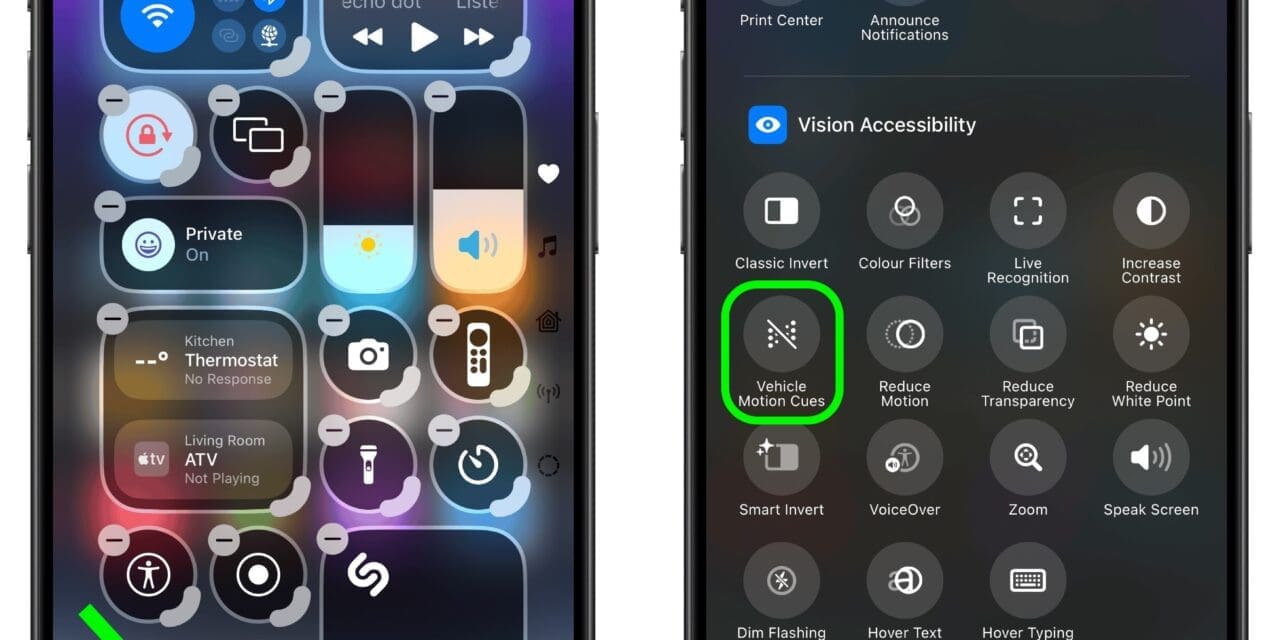
- Open Control Center and tap the new Vehicle Motion Cues control whenever needed.
Expected result check: You can toggle the feature in seconds without digging through Accessibility menus.
Screenshot: Where to find Vehicle Motion Cues
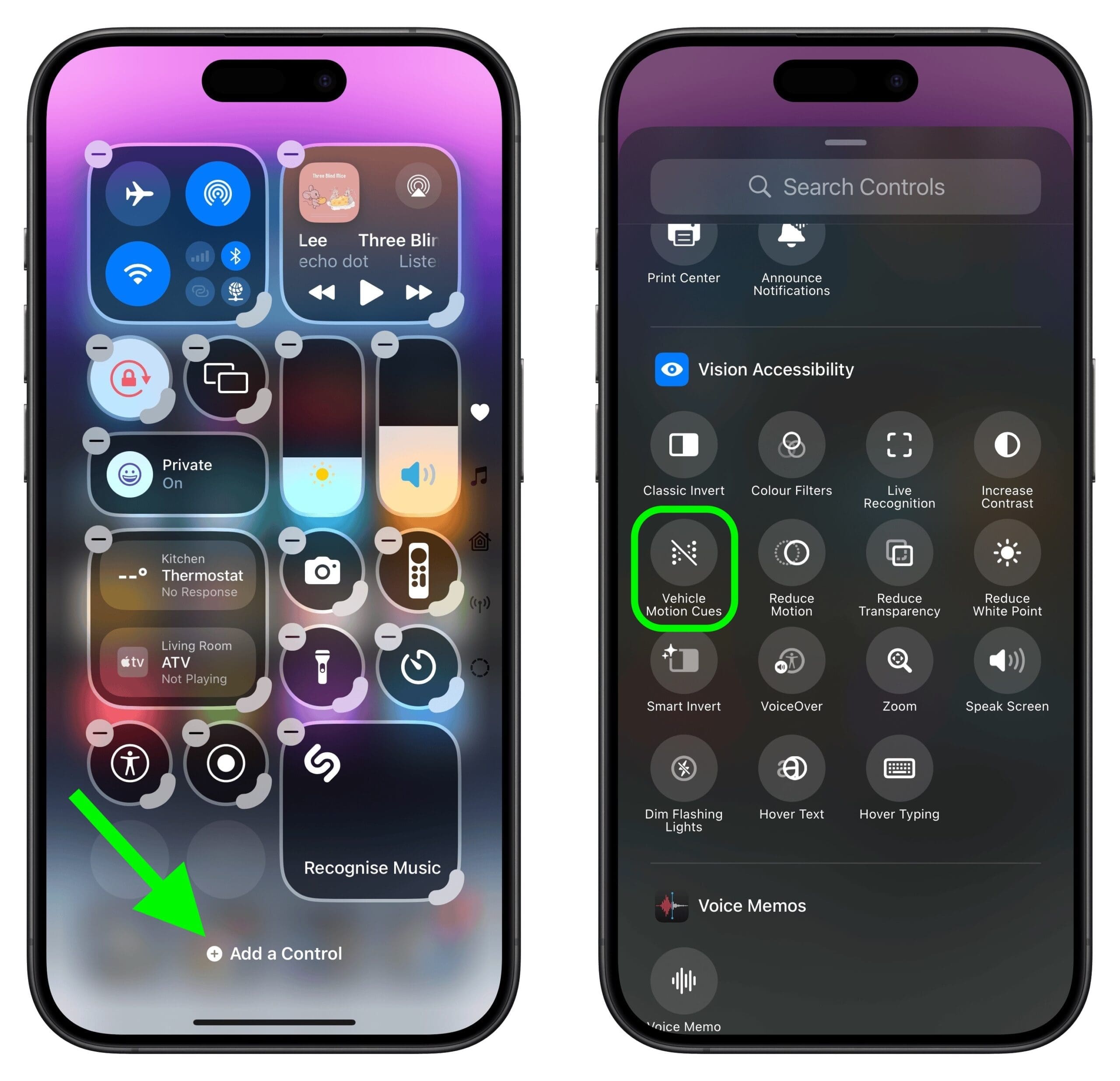
Reference image source: MacRumors walkthrough — iOS 18: Prevent Motion Sickness With Vehicle Motion Cues
Common mistakes
- Looking for it on older iOS versions: the feature is iOS 18+.
- Forgetting Control Center setup: then it feels “hidden” each time you need it.
- Expecting a perfect cure: it helps many users, but not everyone.
- Leaving it on the wrong mode: switch between On and Automatic to test what feels best.
Troubleshooting
- Option missing: confirm iPhone is on iOS 18+.
- No dots appear in car: temporarily switch to On to verify feature behavior.
- Still uncomfortable: reduce close-up screen time, lower brightness, and face forward when possible.
Final expected result
After setup, you should be able to use your iPhone more comfortably in moving vehicles, especially for short reading sessions like maps, messages, or quick browsing.
Next step
Before your next trip, test both modes (On vs Automatic) for 2–3 minutes while riding and keep the setting that feels best.
Related reads: