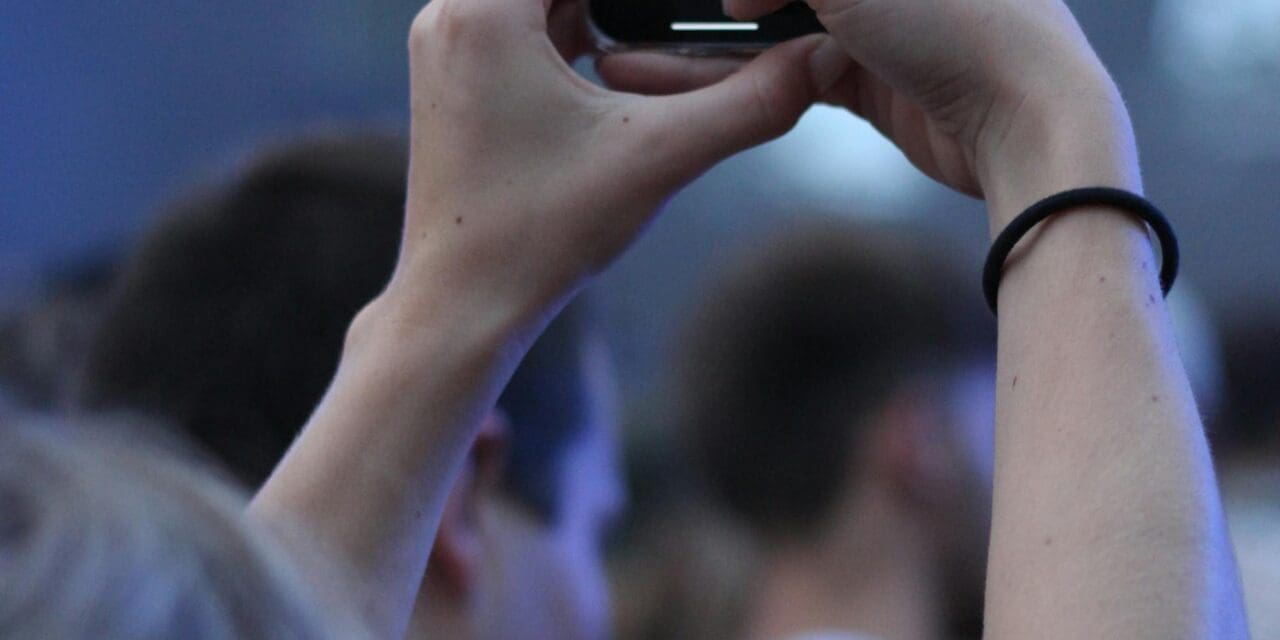
Get clearer sound when you zoom in on iPhone video, so your subject is easier to hear without an external mic.
Best for iPhone users who record family clips, events, or quick social videos and want better audio focus.
Time required: about 30 seconds.
Quick Answer
On supported iPhones, go to Settings → Camera and turn on Audio Zoom. Then record a video and pinch to zoom: the mic focus shifts toward what you zoom in on, reducing surrounding noise.
What this trick does
This single setting makes your iPhone try to match audio focus with your camera zoom during video recording. You get cleaner voice capture on the subject you’re framing, especially in busy environments.
Prerequisites
- An iPhone with support for Audio Zoom (currently reported in iOS 26.4 beta rollouts).
- Updated iOS version (Apple iOS update guide).
- Camera access enabled in iOS settings.
Step-by-step: Enable Audio Zoom on iPhone
- Open Settings on your iPhone.
Expected result: You see the main iOS Settings screen. - Tap Camera.
Expected result: Camera options open (format, recording, and capture controls). - Turn on Audio Zoom.
Expected result: The toggle stays enabled after you leave the page. - Test it in the Camera app: switch to Video, start recording, then pinch to zoom on a person speaking.
Expected result: Their voice sounds more forward and surrounding room noise feels less dominant.
Expected result checks
- When zoom level changes, your subject’s audio should stay clearer than before.
- In crowded places, background chatter should feel less prominent.
- No extra app or accessory is required.
Common mistakes
- Testing in Photo mode instead of Video mode (Audio Zoom affects video capture behavior).
- Expecting miracles in very noisy spaces like concerts or heavy wind.
- Forgetting iOS updates and not seeing the toggle yet.
Troubleshooting
- Audio Zoom toggle missing: Update iOS, then force-close and reopen Settings/Camera.
- No noticeable difference: Stand closer to the speaker, reduce wind/noise, and retry with moderate zoom (2x–3x).
- Still weak audio: Clean iPhone microphone ports and retry recording.
References
- Apple iPhone User Guide (Camera): https://support.apple.com/guide/iphone/change-advanced-camera-settings-iph2f273d3dc/ios
- Apple iOS update guidance: https://support.apple.com/en-us/118575
- MacRumors iOS 26.4 beta feature roundup: https://www.macrumors.com/guide/ios-26-4-beta-features/
Next step
Now test this in your next real clip: record one short video with Audio Zoom off and one with it on, then compare with headphones. You’ll instantly hear whether it should stay enabled for your shooting style.