
If your PC has started running hotter, louder, or slower, you usually don’t need new hardware right away. In many cases, basic upkeep solves the problem.
This guide covers practical pc hardware maintenance tips 2026 users can do at home for free (or nearly free) to reduce failures and extend desktop or laptop lifespan.
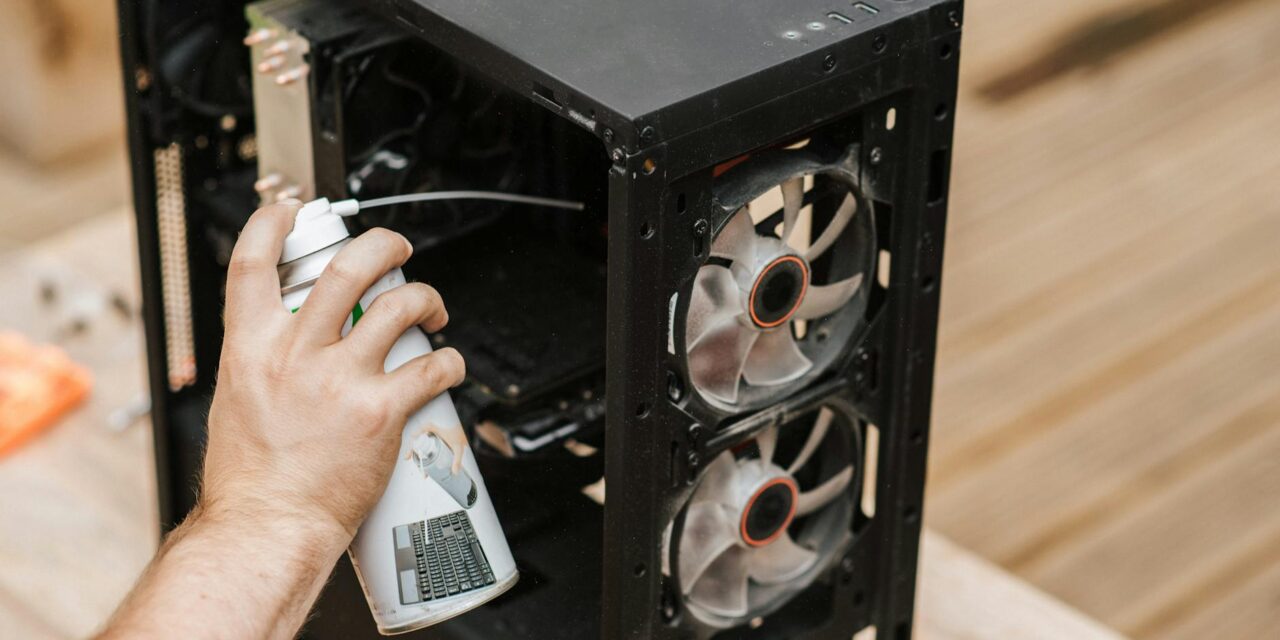
1) Start with a safe dust-clean routine (10–15 minutes)
Dust buildup is one of the most common causes of heat problems. Heat increases fan noise, causes throttling, and can shorten component life over time.
Beginner-safe cleaning checklist:
- Shut down and unplug the computer.
- If it’s a laptop, power off fully before cleaning vents.
- Use short bursts of compressed air on vents and fan intakes.
- Hold fan blades gently in place while cleaning so they don’t overspin.
- Keep the can upright to avoid moisture spray.
Focus on outside vents first. You don’t need a full disassembly routine to get useful results.
2) Track temperatures with HWiNFO before and after cleaning
Don’t guess. Measure.
HWiNFO is a free hardware monitoring tool that shows CPU/GPU temperatures, fan speeds, and power behavior in real time.
Simple test method:
- Record idle temperatures after 10 minutes on desktop.
- Run your usual workload (game, browser + video calls, editing app) for 15 minutes.
- Record peak temperatures.
- Clean dust and repeat the same test.
If you see lower peaks and fewer sudden spikes after cleaning, your airflow fixes are working.
3) Use Speccy for a quick hardware snapshot
Before troubleshooting, create a baseline of your current parts, storage type, and temperatures.
Speccy gives a quick system overview that is easy for beginners to read.
This helps when you need to:
- Check whether a machine has SSD or HDD storage
- Confirm installed RAM amount
- Compare current temps with future checks
Save a snapshot monthly so you can spot changes early instead of waiting for major slowdowns.
4) Run built-in disk and memory checks
Windows includes free diagnostics that many users never run.
Disk check (CHKDSK): Microsoft command docs are here: CHKDSK reference.
Example (run in Command Prompt as admin):
chkdsk C: /scanMemory test: Use Windows Memory Diagnostic for RAM checks after random freezes or blue screens.
These tests can identify storage or memory issues before they become data-loss events.
5) Keep BIOS and device firmware updated carefully
Firmware updates can improve stability, fan behavior, and compatibility. But this is one area where you should be deliberate.
- Update only from your motherboard or laptop maker’s official support page.
- Read release notes and install stable versions.
- Do updates with reliable power (don’t interrupt the process).
If you use custom performance settings, take photos of your BIOS pages first so you can restore them later if needed.
6) Protect your PC from power issues
Power fluctuations and sudden outages can damage hardware and corrupt files.
At minimum, use a quality surge protector. If your area has frequent outages, a basic UPS is a strong upgrade for desktops and home-office systems.
Good grounding and power protection are low-effort steps that prevent expensive failures later.
7) Improve airflow and cable layout
You don’t need premium parts to improve thermals.
Desktop airflow basics:
- Keep front/side intake paths clear.
- Leave space behind the case for exhaust airflow.
- Avoid pushing the PC directly against walls or curtains.
- Tidy loose cables blocking internal airflow paths.
Laptop airflow basics:
- Use on hard, flat surfaces (not blankets or pillows).
- Keep rear/side vents unobstructed.
- Clean cooling pads and filters if you use them.
Even small airflow improvements can reduce sustained heat under heavy use.
8) Use a monthly 15-minute maintenance checklist
Consistency beats emergency fixes.
- Check temps in HWiNFO under your normal workload.
- Quick-clean vents and fan intakes with compressed air.
- Run
chkdsk C: /scanand review warnings. - Run Windows Memory Diagnostic if you had recent crashes.
- Confirm backup status for important files.
- Check official vendor pages for critical BIOS/firmware updates.
This routine is simple, beginner-friendly, and enough for most home users to avoid avoidable hardware problems.
Final takeaway
The best pc hardware maintenance tips 2026 are practical: reduce dust, monitor temperatures, run built-in diagnostics, and keep power and firmware hygiene in good shape. Start with one 15-minute session today, and your PC will likely run cooler, quieter, and more reliably over time.
