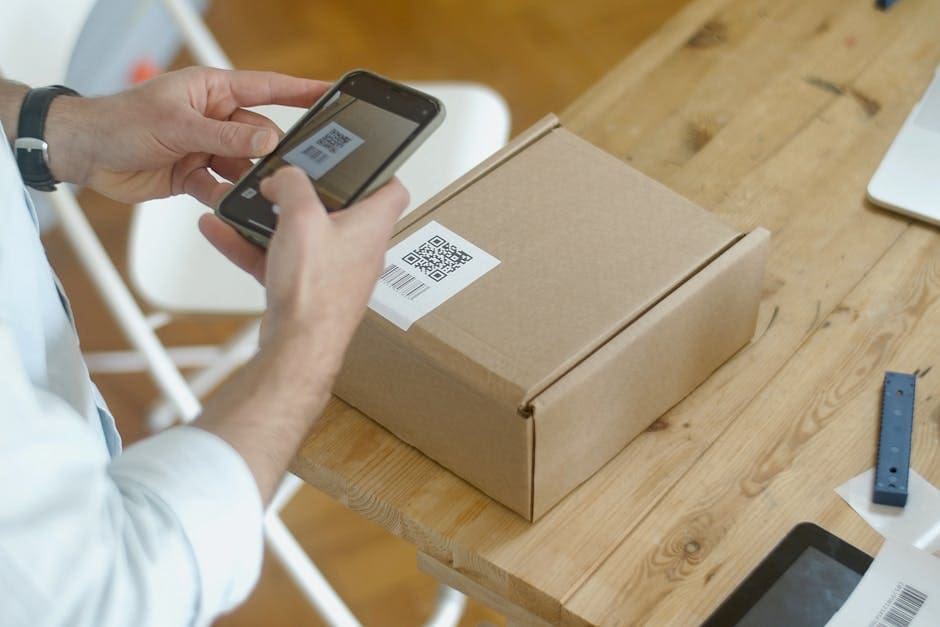
You can scan QR codes and barcodes on iPhone, Android, Windows, and Mac without downloading extra apps.
This guide is for travelers, shoppers, and event attendees who need fast scans with fewer permissions and less app clutter.
Estimated setup time: 5–10 minutes once, then 2 seconds per scan.
Quick Answer
Use your device’s built-in camera tools first: iPhone Camera/Control Center Code Scanner, Android Camera/Google Lens, Windows Camera app QR mode, and macOS Preview/iPhone Continuity Camera flow. In most cases, point the camera, tap the detected code, and choose the action (open link, join Wi‑Fi, save contact, or open app deep link).
Why use a native QR code scanner instead of a third-party app?
- Fewer permissions: You avoid over-permissioned scanner apps.
- Faster access: Native camera or quick controls are already on your device.
- Better trust: Platform-level scanners are maintained by Apple, Google, or Microsoft.
- Cleaner phone: No extra app to update or remove later.
iPhone and iPad: two native ways to scan instantly
Method A: Camera app
- Open Camera.
- Point at the QR code and hold steady.
- Tap the banner that appears at the top.
Expected result: iOS opens the code action (website, contact card, Wi‑Fi join prompt, app link).
Reference: Apple Support — Scan a QR code with your iPhone or iPad camera
Method B: Control Center “Code Scanner”
- Open Settings → Control Center.
- Add Code Scanner if missing.
- Open Control Center and tap Code Scanner.
Expected result: Dedicated scanner opens quickly, useful when you want scanning without full camera-roll context.
Android: use Camera or Google Lens (already built in on most phones)
- Open your default Camera app.
- Point at the QR code.
- Tap the detected link/action chip.
If your camera doesn’t detect immediately, tap the Lens icon or open Google Lens.
Expected result: You get an actionable result (URL, map location, contact, product code, Wi‑Fi details).
Reference: Google Android Help — Scan QR codes with your Android camera
Windows: native QR scan from Camera app
- Open the Camera app in Windows.
- Switch to QR/Barcode mode if prompted.
- Hold the code in frame and copy/open the result.
Expected result: Windows detects the QR and exposes link text or quick-open actions.
Reference: Microsoft Support — Use your camera to scan a QR code
Mac: use Preview and Continuity workflows
- If the QR code is in an image/PDF, open it in Preview.
- Click the detected QR content in Preview to open the linked action.
- For physical codes, scan with iPhone and continue on Mac when relevant.
Expected result: macOS resolves the QR content without installing scanner apps.
Reference: Apple Preview User Guide — Scan a QR code
Real-world use cases (where native scanning wins)
- Travel: boarding links, venue maps, transit info.
- Shopping: compare product pages and warranty links.
- Events: check-in forms, guest Wi‑Fi, digital menus.
- Work: asset labels, setup instructions, device pairing.
Common mistakes
- Using random scanner apps first instead of built-in camera tools.
- Tapping links from untrusted or suspicious QR stickers.
- Not checking the destination domain before opening.
- Assuming all barcodes and QR formats behave the same on every OEM camera app.
Troubleshooting
- No scan prompt appears: improve lighting, hold still, clean lens, and move slightly farther away.
- Android camera won’t detect: use Lens explicitly, then update Camera and Google app.
- Windows camera missing QR mode: update Camera app from Microsoft Store and install pending Windows updates.
- Code opens wrong page: copy URL first and inspect the domain before opening.
- QR is on your own screen: take a screenshot, then scan from the image with Lens/Preview-capable tools.
Security tip before you tap
QR phishing is real. Always preview the destination and avoid codes that ask for unusual credentials, payment details, or urgent “verify now” actions. If the URL looks off-brand, don’t open it.
Background reference: Android Authority — Android QR code scanner guide
Related FreeTechTricks reads
- No-App Needed: Screen Record with Windows Snipping Tool (Win+Shift+R)
- 8 Android Camera Hacks 2026: Pro-Level Photos With No Extra Apps
- Speed Boost: Enable Chrome Memory Saver for 40% Less RAM on Idle Tabs
Takeaway
If you remember one rule, make it this: your built-in camera stack is your default QR code scanner. It is faster, safer, and cleaner than installing yet another scanner app for one-off use.