Move big files between two Macs without Wi-Fi, cloud uploads, or extra apps.
This trick is for Mac users migrating data, rescuing files, or doing quick offline transfers.
Estimated time: about 5 minutes to set up, then transfer time depends on file size.
Quick Answer
Use Target Disk Mode on an Intel Mac: shut down both Macs, connect them with a compatible cable, start the source Mac while holding T, then copy files from Finder on the other Mac. Eject safely when done.
Prerequisites
- Two Macs (at least the one entering Target Disk Mode should be Intel-based)
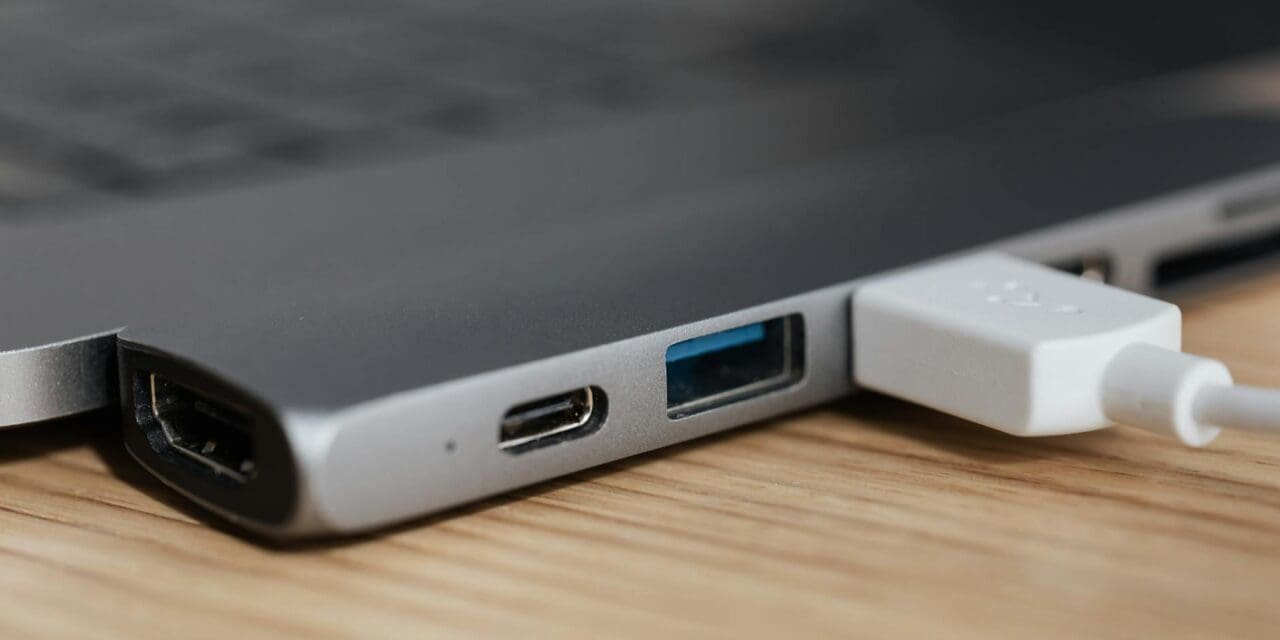
- A compatible cable (Thunderbolt, USB-C Thunderbolt, or FireWire depending on hardware)
- Power adapters connected for both Macs during large transfers
Step-by-Step: Turn One Mac into an External Drive
- Shut down both Macs completely.
Expected result check: both displays are off and fans are idle. - Connect the two Macs with the correct cable.
Expected result check: cable is firmly seated on both ends; adapters are secure if used. - On the Mac you want to access as a drive, hold
Twhile powering it on.
Expected result check: you see a Target Disk Mode screen icon (Thunderbolt/FireWire style indicator). - On the other Mac, open Finder and look under Devices.
Expected result check: the target Mac’s disk appears like an external drive and opens normally. - Copy files, then eject the mounted disk before disconnecting.
Expected result check: Finder unmounts the disk cleanly and no warning dialogs appear.
Common Mistakes
- Using a charge-only USB cable instead of a data-capable Thunderbolt/FireWire cable.
- Trying this on Apple silicon as classic Target Disk Mode (use modern alternatives there).
- Unplugging the cable before ejecting the mounted disk in Finder.
- Forgetting FileVault or user permissions can block immediate file access.
Troubleshooting
- Drive does not appear in Finder: restart both Macs, reseat cable, try another port/cable, then repeat the
T-key startup. - Disk appears read-only: check encryption/permission state and unlock where prompted.
- Transfer is slow: verify you are using Thunderbolt-grade hardware, not legacy/low-speed adapters.
- Target Mac stuck in mode: hold power button to shut down, then reboot normally.
Reference Links
- Apple Support: Mac startup key combinations (includes Target Disk Mode): https://support.apple.com/en-us/102603
- Apple Support: Use Target Disk Mode to connect another Mac: https://support.apple.com/en-us/HT201295
- Apple Mac Help: Transfer files with Target Disk Mode: https://support.apple.com/guide/mac-help/transfer-files-mac-computers-target-disk-mode-mchlp1443/mac
Next Step
After your transfer, create a simple migration checklist (Documents, Photos, Desktop, Downloads) and verify each folder on the destination Mac so nothing gets missed.