Get sharper, brighter, more cinematic photos and videos on Android using only built-in camera tools. This guide is for beginners using Pixel, Samsung Galaxy, and other Android phones who want better results fast. Time to complete: about 20–35 minutes for the full setup.
Quick Answer
If you only do three things today: enable RAW + Pro controls, learn Night Sight/Astrophotography stability setup, and switch on better video stabilization settings. Those three changes alone usually improve detail, low-light quality, and motion footage without installing any extra camera app.
Target keyword: android camera hacks 2026. The hacks below focus on features already in your phone’s camera app, with clear checks after each step so you can confirm it worked.
Before You Start (2 Minutes)
- Update your phone camera app and system software first:
- Clean the lens with a soft microfiber cloth.
- Keep at least 5–10 GB free storage for RAW and high-resolution video.
Expected result check: Camera opens quickly, all shooting modes load, and no “storage full” warning appears.
1) Enable RAW + Manual/Pro Controls
RAW gives you more editing flexibility, while manual controls let you correct common auto-camera mistakes (too dark faces, motion blur, blown highlights).
- Open Camera settings.
- Turn on RAW (often called RAW, RAW+JPEG, or Expert RAW depending on device).
- Open Pro or Manual mode and test:
- ISO: 50–200 in daylight, 400+ when needed
- Shutter: faster for moving subjects, slower for static scenes
- Exposure compensation: nudge ±0.3 to fix bright/dark bias
Expected result check: You can see and adjust ISO/shutter values, and RAW files appear in your gallery or camera folder.
Reference: Android CameraX documentation.
2) Use Astrophotography Mode the Right Way
Astrophotography is one of the strongest built-in Android camera features, especially on Pixel devices. The key is stability and patience.
- Switch to Night Sight (or equivalent night mode).
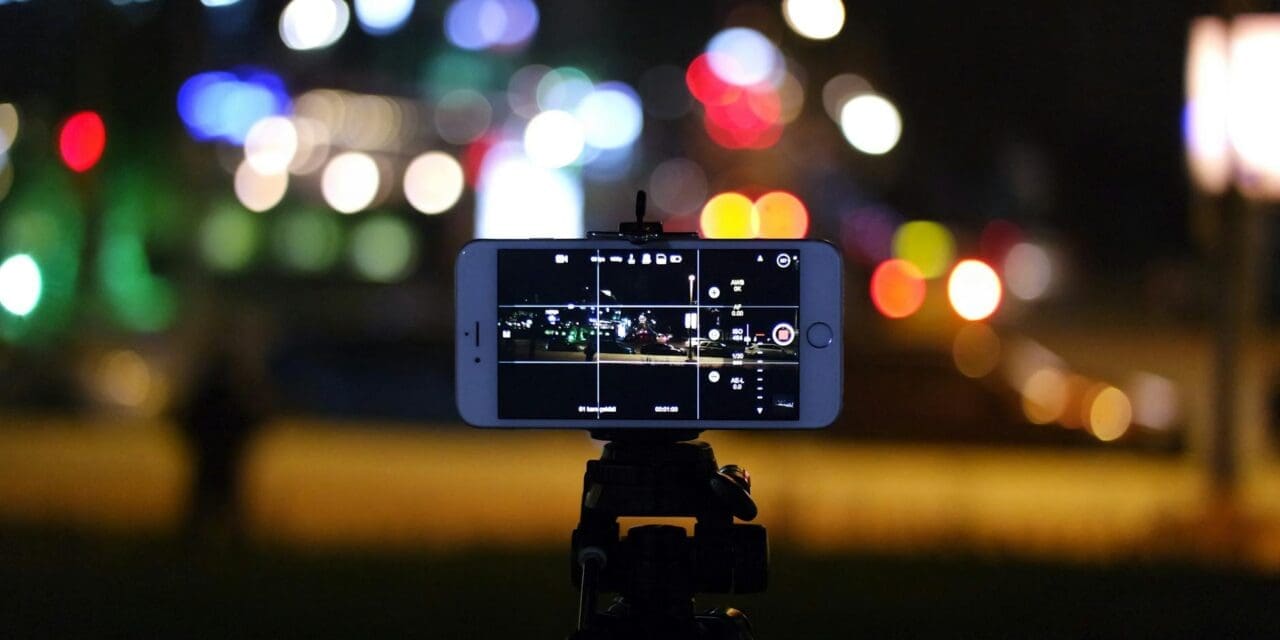
- Place phone on a tripod, stable wall, or rock. Do not handhold.
- Use a 3s or 10s timer to avoid shake.
- Wait for astrophotography trigger text/icon, then capture.
Expected result check: Exposure runs longer than a normal shot, stars appear sharper, and noise is lower than regular night photos.
Reference: Google Pixel Night Sight & Astrophotography help and Google Pixel astrophotography overview.
3) Improve Night Sight Results With Simple Tweaks
- Tap the brightest important subject before shooting (face/sign/object).
- Use slight underexposure (-0.3 or -0.7 EV) to protect streetlights and neon signs.
- Hold still until processing completes.
- In your built-in editor, reduce highlights first, then raise shadows carefully.
Expected result check: Night photos keep detail in bright lights while preserving shadow information without heavy blur.
4) Fix Portrait Mode Edge Detection and Skin Tones
- Use good side lighting, not strong backlight.
- Keep subject 1–2 meters away for cleaner edge detection.
- Avoid busy backgrounds with similar colors to hair/clothes.
- Use built-in portrait lighting controls after capture for subtle adjustments.
Expected result check: Hair and glasses edges look cleaner, and background blur appears natural instead of cut out.
Reference: Android camera tips and portrait guidance.
5) Upgrade Video Quality With Stabilization + Frame Rate Choices
For most people, better video comes from the right stabilization and frame-rate choice, not maxing out resolution.
- Use 4K/30 for balanced quality + stability.
- Use 4K/60 only in good light and when you need smoother motion.
- Enable enhanced stabilization/super steady mode for walking shots.
- Lock exposure/focus before panning to avoid brightness pumping.
Expected result check: Less shake during movement, fewer exposure jumps, and cleaner detail compared with default auto video.
6) Use Motion Photo / Top Shot for Action Moments
- Turn on Motion Photo (name varies by device).
- Shoot kids, pets, sports, or street scenes.
- Open the shot and pick the best frame afterward.
Expected result check: You can extract a better frame than the original still, with improved timing and expression.
Reference: Android camera feature roundup (Motion Photo/Top Shot context).
7) Build a Fast Post-Shot Workflow (No Paid App Required)
- Star/favorite your top shots immediately.
- Apply light edits only: crop, straighten, highlight/shadow balance.
- Export social versions at slightly lower size; keep originals for archive.
- If needed, use Adobe Lightroom Mobile for RAW adjustments.
Expected result check: You finish with a clear “best picks” set and avoid editing every photo individually.
8) Device-Specific Camera Defaults Worth Setting Once
- Pixel: prioritize Night Sight and Top Shot behavior in camera settings.
- Samsung Galaxy: review Camera Assistant and Expert RAW options where available.
- Any Android: turn grid lines on and leave HDR/auto enhancement enabled unless it harms skin tones.
Expected result check: Your default camera behavior matches your style, so good shots require fewer retakes.
Common Mistakes
- Using 8K video by default and running out of storage quickly.
- Handholding astrophotography shots (almost always causes blur/noise).
- Over-editing shadows, which creates muddy or artificial-looking images.
- Ignoring focus lock in video, causing constant focus hunting.
- Forgetting to clean the lens before low-light photos.
Troubleshooting
- No Pro mode visible: check if your manufacturer hides it under “More” or a separate app (for example, Samsung Expert RAW).
- RAW option missing: your model may not expose RAW in the stock app; update camera/system and re-check advanced settings.
- Astrophotography won’t activate: move to a darker scene, fully stabilize phone, and wait a few seconds in Night Sight.
- Night photos still noisy: reduce digital zoom, hold steady longer, and prioritize brighter subjects.
- Video looks jittery: use 4K/30 plus stabilization rather than 4K/60 or 8K in dim light.
Related Guides on FreeTechTricks
- 10 Best Android Battery Hacks 2026 (No Root, No Apps Needed)
- Hidden Feature: Turn Your Pixel into a Desktop PC
- Turn Your Old Android into a Wi-Fi Extender
Final Takeaway
The best Android camera hacks in 2026 are mostly setup decisions, not expensive apps. Start with RAW + manual controls, master stable night shooting, and lock in better video defaults. Once those are configured, your day-to-day photos improve immediately with less effort.